Bose Quietcomfort Ultra Headphones
A practical step-by-step guide to bose quietcomfort ultra headphones, including preparation, instructions, common issues, tips, and next steps.

Bose Quietcomfort Ultra Headphones
This guide walks you through setting up, using, and maintaining your Bose QuietComfort Ultra Headphones. You’ll learn how to connect them to your devices, master their advanced noise cancellation features, and customise settings for the best listening experience. Whether you've just unboxed them or need a refresher on getting the most out of your headphones, this guide provides clear, step-by-step instructions to ensure your headphones perform perfectly.
Fast Answer
- Initial Pairing: Power on, open Bose Music app, follow prompts
- Noise Cancellation: Cycle modes via button or app
Before You Start
- Your Bose QuietComfort Ultra Headphones (fully charged if possible).
- A smartphone or tablet with the Bose Music app installed.
- The charging cable that came with your headphones.
- A device (phone, tablet, computer) ready for Bluetooth pairing.
- A stable internet connection for app download and firmware updates.
Step-by-Step Instructions
Unbox and Power On Your Headphones
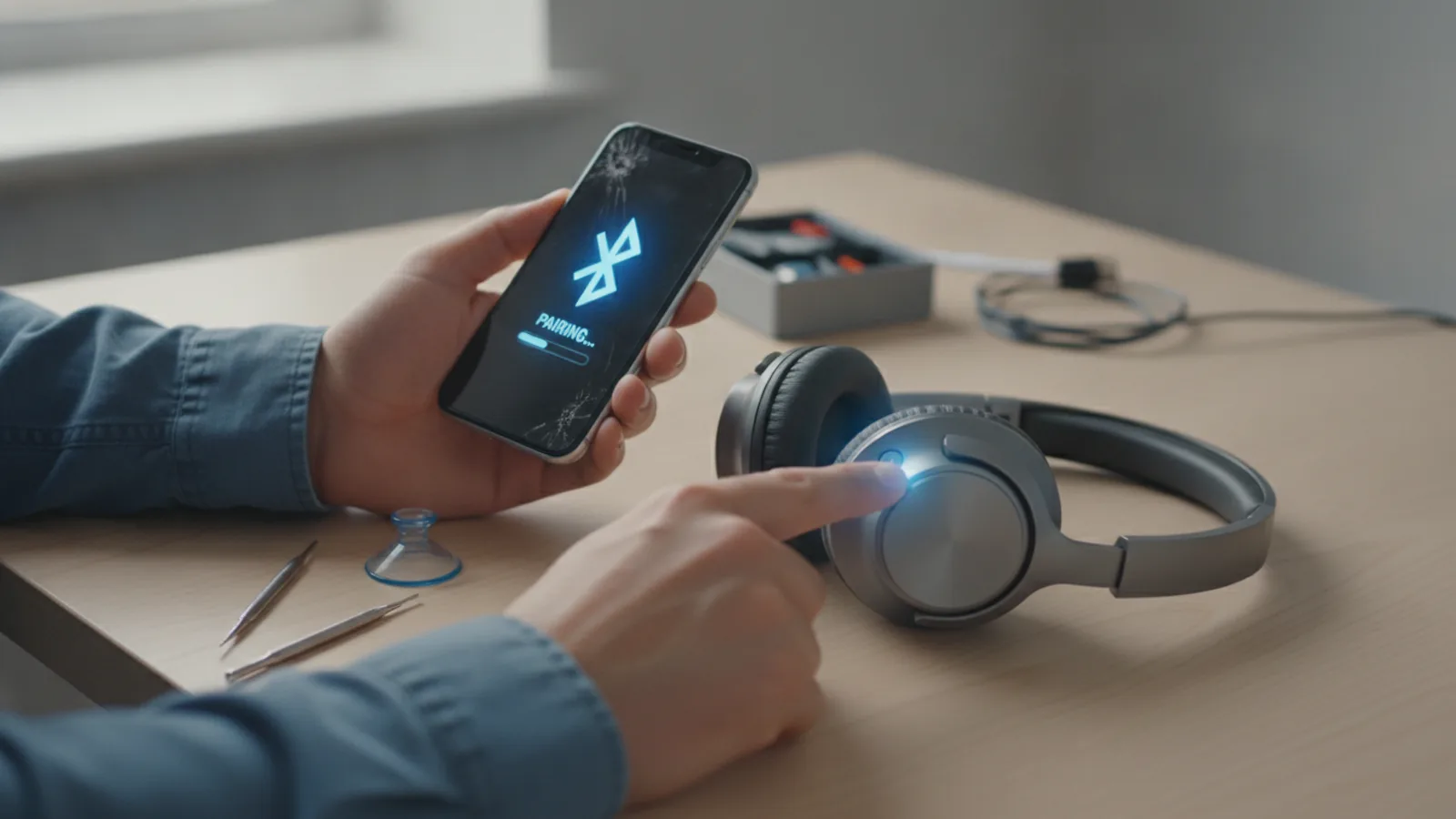
Carefully remove your Bose QuietComfort Ultra Headphones from their packaging. Locate the power button on the right earcup. Press and hold this button until you hear a voice prompt indicating "Battery [percentage]. Ready to connect." A small light indicator on the earcup will also illuminate, usually in blue or white, showing they are active and ready for pairing.
Install the Bose Music App and Connect
For the best experience and access to all features, download the Bose Music app onto your smartphone or tablet. You can find it on the Apple App Store or Google Play Store. Once installed, open the app and follow the on-screen instructions to set up your new QuietComfort Ultra Headphones. The app will guide you through the pairing process, detect your headphones, and help establish a stable Bluetooth connection. Make sure your device's Bluetooth is turned on.
Master Noise Cancellation and Aware Mode
Your Bose QuietComfort Ultra Headphones offer world-class noise cancellation. To adjust this, locate the multi-function button on the left earcup. Pressing this button will cycle through different listening modes: "Quiet" (full noise cancellation), "Aware" (allows ambient sounds in so you can hear your surroundings), and potentially a custom mode you've set up. Experiment with these modes to understand how they affect your listening environment. You can also fine-tune these settings within the Bose Music app, including creating custom modes.
Customise Settings with the Bose Music App
The Bose Music app is your control centre for the QuietComfort Ultra Headphones. Open the app and select your headphones. Here, you can access a range of customisation options. You can adjust the level of noise cancellation, create specific "Custom Modes" tailored to different environments (e.g., "Office" or "Commute"), and modify the equaliser (EQ) settings to personal preference. The app also allows you to change the voice prompt language and manage connected devices.
Manage Multiple Connected Devices
The Bose QuietComfort Ultra Headphones can connect to multiple devices simultaneously (often up to two active connections, with a memory of several more). To switch between active devices, ensure both are within range and playing audio. The headphones should automatically switch to the device currently playing sound. If this doesn't happen, or if you need to manually connect to a new device from your memory list, open the Bose Music app, go to your headphones' settings, and use the "Source" or "Connections" menu to select or add devices. You can also manually put your headphones into pairing mode by holding the power button for about 3-5 seconds until the voice prompt says "Ready to connect" and the indicator light blinks blue, then select them from your new device's Bluetooth menu.
Update Your Headphones' Firmware
Bose regularly releases firmware updates to improve performance, add new features, and fix bugs. It's crucial to keep your headphones updated. The Bose Music app will usually notify you when an update is available. To perform an update, connect your headphones to your device via the app, ensure they have sufficient battery (ideally 50% or more), and then follow the on-screen prompts in the app. The update process can take several minutes, and the headphones might restart during this time. Do not disconnect or power off your headphones during an update.
Charge Your Headphones Correctly
To charge your Bose QuietComfort Ultra Headphones, use the supplied USB-C cable. Connect the small end of the cable to the USB-C port on the bottom of the right earcup and the larger end to a USB power source, such as a wall adapter or a computer's USB port. The charging indicator light will pulse amber during charging and turn solid white when fully charged. A full charge typically takes about 2-3 hours. Avoid using uncertified or damaged charging cables, as this can harm the battery.
Clean and Maintain Your Bose QuietComfort Ultra
Regular cleaning helps prolong the life and appearance of your headphones. Use a soft, dry, lint-free cloth to wipe down the earcups and headband. For ear cushions, you can gently wipe them with a slightly dampened cloth (water only, no harsh chemicals) and then dry them immediately. Avoid getting moisture into the speaker grilles or charging port. Store your headphones in their included case when not in use to protect them from dust and accidental damage. Do not submerge them in water or expose them to extreme temperatures.
Quick Reference
| Situation | Use this | Why |
|---|---|---|
| Quickly change listening mode | Press the left earcup button | Cycles between Quiet, Aware, and Custom modes. |
| Answer/end a call | Press the centre button on the right earcup | Manages phone calls easily without touching your phone. |
| Adjust volume | Press volume up/down buttons on the right earcup | Fine-tunes audio loudness directly from the headphones. |
| Check battery level | Short press of the power button (when on) | Voice prompt announces current battery percentage. |
| Factory reset | In app: Settings > Factory Reset (or hold power & Bluetooth for 30s) | Resolves persistent software glitches or prepares for sale. |
Common Problems When You Use Bose Quietcomfort Ultra Headphones
Even with advanced headphones like the Bose QuietComfort Ultra, you might encounter a few common issues. Knowing how to quickly troubleshoot these can save you time and frustration.
Headphones Not Connecting via Bluetooth
If your headphones struggle to connect, first ensure they are fully charged and within range of your device (usually 10 metres or 33 feet). Turn off Bluetooth on your device, wait 10 seconds, then turn it back on. Sometimes, simply restarting both your headphones and your source device can resolve connection issues. If the problem persists, try "forgetting" the headphones in your device's Bluetooth settings and then re-pairing them from scratch using the Bose Music app.
Poor Sound Quality or Dropouts
Intermittent sound or poor audio quality can often be due to interference. Try moving away from other wireless devices like Wi-Fi routers, microwaves, or other Bluetooth devices. Walls and obstacles can also weaken the signal, so ensure a clear line of sight between your headphones and the connected device. If you're connected to multiple devices, temporarily disconnect from unused ones, as this can sometimes cause audio conflicts.
Noise Cancellation Not Working Properly
If you feel the noise cancellation isn't as effective as it should be, first ensure the earcups are sitting correctly and snugly over your ears. A poor seal can significantly reduce noise-cancelling performance. Check the Bose Music app to ensure you are in "Quiet" mode and that the noise cancellation level is set to maximum. Sometimes, a simple restart of the headphones can re-calibrate the noise cancellation system.
Headphones Not Charging
If your headphones aren't charging, start by checking the charging cable and the USB power source. Try using a different USB-C cable or a different wall adapter. Ensure the charging port on your headphones is clean and free of debris. Occasionally, a software glitch can prevent charging; a soft reset (powering off and on) can sometimes fix this. If the issue continues, contact Bose support.
Voice Prompts or Buttons Not Responding
If voice prompts are missing or buttons aren't doing what they should, check the Bose Music app for any pending firmware updates. Outdated firmware can sometimes cause unexpected behaviour. A factory reset (performed via the app) is a last resort that can often resolve software-related issues, but remember it will erase all your custom settings.
Advanced Tips for Bose Quietcomfort Ultra Headphones
Beyond the basic setup, there are several ways to get even more out of your Bose QuietComfort Ultra Headphones, enhancing your listening experience and managing them more efficiently.
Optimise Custom Modes for Specific Scenarios
Instead of just switching between Quiet and Aware, use the Bose Music app to create several Custom Modes. For example, you could have a "Commute" mode with high noise cancellation but specific EQ settings for podcasts, and an "Office Focus" mode with slightly less noise cancellation but optimised for clear video calls. Assign a name and specific settings for each, and you can quickly switch between them using the earcup button or the app.
Use Bose Immersive Audio for a New Dimension
The QuietComfort Ultra Headphones feature Bose Immersive Audio, which creates a spatial sound experience. Explore this feature within the Bose Music app. You can choose between "Still" (where audio stays anchored in place, even if you move your head) and "Motion" (where audio moves with you, creating a wider soundstage). Experiment with these to see how they transform your music, movies, and games, giving a more enveloping and realistic sound.
Manage Your Connections Wisely
While the headphones support multiple device connections, sometimes you might want to prioritise one. In the Bose Music app, you can see all connected devices and actively manage them. You can disconnect devices you're not using or remove old ones from the memory list to keep your connections tidy and prevent accidental switching.
Periodically Check for Firmware Updates Manually
While the app usually notifies you, it's a good practice to occasionally open the Bose Music app and navigate to your headphones' settings to check for firmware updates manually. Bose frequently releases updates that improve battery life, enhance audio performance, or even add new features. Staying updated ensures you have the best possible experience and security.
Personalise Your Voice Prompts
Within the Bose Music app, you can often change the language of the voice prompts or even disable them in favour of tones if you prefer. This allows for a more personalised and less intrusive experience, especially if you find the voice prompts distracting.
Bose Quietcomfort Ultra Headphones FAQ
Q: How do I put my Bose QuietComfort Ultra Headphones into pairing mode?
A: With the headphones powered on, press and hold the power button for about 3-5 seconds until you hear "Ready to connect" and the Bluetooth indicator light blinks blue. Then, select them from your device's Bluetooth list.
Q: Can I use the Bose QuietComfort Ultra Headphones with a wired connection?
A: Yes, the Bose QuietComfort Ultra Headphones come with an audio cable that allows you to connect them to devices via a 2.5mm to 3.5mm jack. This is useful for devices without Bluetooth or when you prefer a wired connection, such as for in-flight entertainment.
Q: Are the ear cushions replaceable?
A: Yes, the ear cushions on the Bose QuietComfort Ultra Headphones are designed to be replaceable. You can often purchase genuine replacement ear cushions directly from Bose or authorised retailers if they wear out or get damaged.
Q: What is the battery life of the Bose QuietComfort Ultra Headphones?
A: Typical battery life for the Bose QuietComfort Ultra Headphones is around 24 hours with noise cancellation enabled. This can vary based on volume levels, use of Immersive Audio, and other features. Charging for 15-20 minutes can often give you several hours of playback.
Q: How do I perform a factory reset on my headphones?
A: You can usually perform a factory reset via the Bose Music app in the settings for your headphones. Alternatively, with your headphones powered on, simultaneously press and hold the power button and the Bluetooth button (often the same as the power button, just a longer hold for Bluetooth pairing mode) for about 30 seconds until the light indicators flash rapidly. This will clear all settings and connections.
Q: Can I use my Bose QuietComfort Ultra Headphones for phone calls?
A: Yes, the headphones have integrated microphones for making and receiving phone calls. You can answer or end calls by pressing the centre button on the right earcup. Noise cancellation helps ensure clear calls even in noisy environments.
Final Checklist for Bose Quietcomfort Ultra Headphones
Before you consider your setup complete and your headphones ready for everyday use, run through this final checklist to ensure everything is optimised.
- Initial Setup Complete: Have you successfully paired your headphones with your primary device using the Bose Music app?
- Firmware Up-to-Date: Have you checked for and installed the latest firmware update for your headphones via the Bose Music app?
- Noise Cancellation Tested: Have you tried out the "Quiet" and "Aware" modes and confirmed they work as expected?
- Custom Modes Configured: Have you explored creating custom listening modes in the Bose Music app to suit your specific needs (e.g., commute, focus, gym)?
- EQ Settings Adjusted: Have you listened to different types of audio and tweaked the equaliser settings in the app to your preference?
- Immersive Audio Explored: Have you experimented with Bose Immersive Audio (Still and Motion modes) to see if it enhances your experience?
- Multiple Devices Managed: If you use multiple devices, have you confirmed you can switch between them smoothly?
- Button Functions Understood: Do you know the purpose of each button on your headphones for easy control of volume, calls, and modes?
- Charging Routine Established: Do you know how to correctly charge your headphones and what the indicator lights mean?
- Cleaning Plan in Place: Are you aware of how to safely clean your headphones to maintain their condition over time?
By following these steps, you're now fully equipped to enjoy your Bose QuietComfort Ultra Headphones to their fullest potential. Remember to consult the Bose Music app or Bose's official support resources if you encounter any issues not covered here.