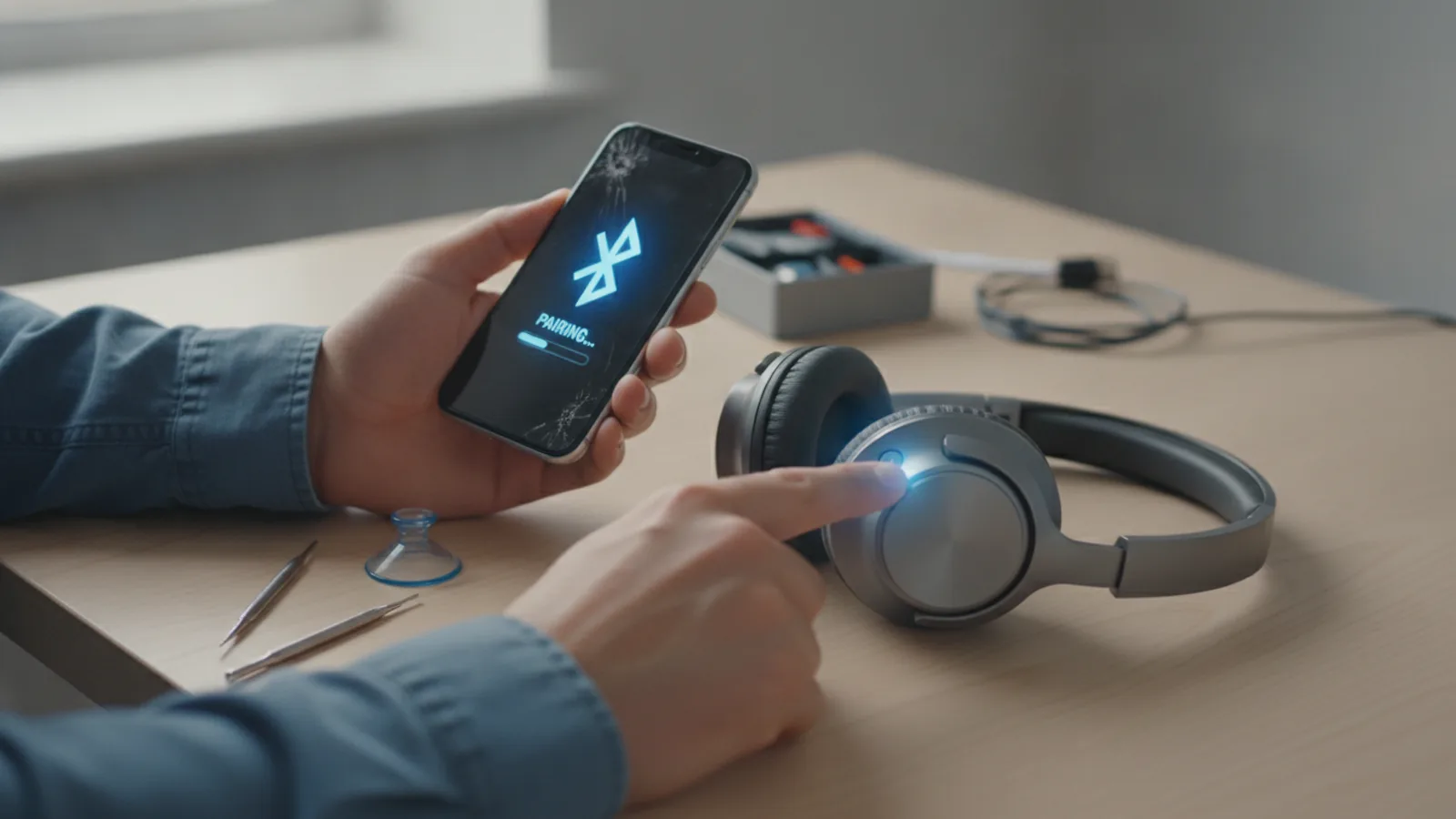
Bose Quiet Comfort Headphones
A practical step-by-step guide to bose quiet comfort headphones, including preparation, instructions, common issues, tips, and next steps.

Bose Quiet Comfort Headphones
This guide provides clear, step-by-step instructions for getting the most out of your Bose Quiet Comfort headphones. Whether you're setting them up for the first time, troubleshooting common issues, or looking for advanced tips to enhance your listening experience, this resource is designed for you. It covers everything from initial pairing and charging to understanding noise cancellation modes and maintaining your device, helping you enjoy crisp audio and serene quiet in any environment.
Fast Answer
- Pairing Mode: Hold power/Bluetooth button until "Ready to connect" is heard.
- Reset: Connect to power, hold power button for 15 seconds.
- Noise Cancelling: Use the Action button or Bose Music app.
Before You Start
- Fully charged headphones: Ensure your Bose Quiet Comfort headphones have enough battery for setup and use.
- A compatible device: Have your smartphone, tablet, or computer ready for Bluetooth pairing.
- Bose Music app (optional but recommended): Download and install the app from your device's app store for full control and updates.
- Charging cable: A USB-C charging cable (often included) for charging.
- Clean, dry cloth: Useful for basic maintenance.
Step-by-Step Instructions
Charge Your Headphones
Before you begin using your Bose Quiet Comfort headphones, make sure they are adequately charged. A full charge ensures you have enough power for initial setup and an uninterrupted listening experience. Locate the USB-C charging port, usually found on the bottom or side of one of the earcups.
- Take the provided USB-C charging cable (or a compatible one).
- Plug the smaller USB-C end into the charging port on your headphones.
- Plug the larger USB-A end into a USB wall charger (like one for your phone) or a powered USB port on a computer.
- Observe the battery indicator light on the headphones. It will typically glow amber while charging and turn green when fully charged.
Pair with a Device via Bluetooth
Connecting your Bose Quiet Comfort headphones to your smartphone, tablet, or computer is straightforward using Bluetooth technology. This allows for wireless audio streaming and call management.
- Turn on your headphones by sliding the power switch to the "On" position. You will hear an audible cue confirming they are on.
- Slide the power switch further to the Bluetooth symbol and hold it there for about 2-3 seconds. You will hear "Ready to connect" and the Bluetooth indicator light will flash slowly, typically blue. This means your headphones are in pairing mode.
- On your device (e.g., smartphone), go to its Bluetooth settings.
- Ensure Bluetooth is turned on.
- Look for "Bose QC Headphones," "Bose QuietComfort," or similar in the list of available devices and select it.
- Once connected, you will hear "Connected to [Device Name]" from your headphones, and the Bluetooth indicator light will glow solid white or blue.
Install and Connect to the Bose Music App
While not strictly necessary for basic listening, the Bose Music app unlocks the full potential of your Quiet Comfort headphones, offering customisation, firmware updates, and advanced controls.
- On your smartphone or tablet, open your device's app store (App Store for iOS, Google Play Store for Android).
- Search for "Bose Music" and download the official app.
- Once installed, open the Bose Music app.
- Follow the on-screen prompts to create a Bose account or log in if you already have one.
- The app will automatically search for nearby Bose devices. Ensure your headphones are powered on and in pairing mode if they don't appear immediately.
- Select your Bose Quiet Comfort headphones from the list within the app to connect.
- The app will then guide you through any initial setup, like naming your headphones or performing a firmware update.
Understand and Use Noise Cancellation
Bose Quiet Comfort headphones are renowned for their active noise cancellation (ANC) technology. This feature significantly reduces unwanted ambient sounds, allowing for a more immersive audio experience or a quiet environment for concentration.
- Locate the Action button on your headphones (often on the left earcup).
- Press the Action button once to cycle through noise cancellation modes. Common modes include:
- Quiet Mode (Full Noise Cancellation): Ideal for reducing general background noise like engine hums, air conditioning, or office chatter.
- Aware Mode (Transparency Mode): Allows some ambient sounds to pass through, so you can hear your surroundings, perfect for walking in a city or listening for announcements.
- Some models also offer customisable modes via the Bose Music app.
- Listen to the audible cue from your headphones confirming the selected mode.
- To fine-tune noise cancellation, open the Bose Music app. Here you can often adjust the level of noise cancellation with a slider or create custom modes.
Manage Audio Playback and Calls
Your Bose Quiet Comfort headphones come with intuitive controls, usually on the right earcup, to manage music playback, volume, and phone calls without needing to touch your connected device.
- Volume Control: Use the volume up (+) and volume down (-) buttons. Press and hold to continuously adjust the volume, or press briefly for incremental changes.
- Play/Pause: Press the multi-function button (often the large, central button between volume controls) once to play or pause audio.
- Skip Track: Press the multi-function button twice quickly to skip to the next track.
- Previous Track: Press the multi-function button three times quickly to go back to the beginning of the current track or to the previous track.
- Answer/End Call: When a call comes in, press the multi-function button once to answer. Press it again to end the call.
- Decline Call: To decline an incoming call, press and hold the multi-function button for about 2 seconds.
Update Headphone Firmware
Keeping your headphone's firmware updated is crucial for performance improvements, bug fixes, and access to new features. Bose often releases updates to enhance sound quality, battery life, or Bluetooth stability.
- Ensure your headphones are fully charged before starting any update process.
- Connect your headphones to your smartphone or tablet via Bluetooth and open the Bose Music app.
- Within the app, look for a notification or a section that indicates "Updates Available" or "Firmware Update." This is often found on the main screen for your headphones or in the settings menu.
- Follow the on-screen instructions provided by the app to download and install the update. This process may take several minutes.
- During the update, do not disconnect your headphones, close the app, or power off your device. Keep your phone and headphones close together.
- Once the update is complete, the app will notify you. Your headphones may restart automatically.
Perform a Factory Reset
If you encounter persistent issues such as connection problems, sound glitches, or unresponsive controls, a factory reset can often resolve them. This will clear all settings and connections, returning the headphones to their out-of-the-box state.
- Ensure your headphones are connected to a power source using the USB-C cable. This ensures they do not power off during the reset.
- While connected to power, press and hold the power/Bluetooth button for approximately 15 seconds.
- You will hear a voice prompt or see the indicator lights flash to confirm the reset. For some models, the Bluetooth light may flash white or amber and then turn solid.
- Once the reset is complete, disconnect the USB cable.
- Your headphones are now reset. You will need to pair them again with your devices as if they were new.
Clean and Maintain Your Headphones
Regular cleaning helps maintain the performance and longevity of your Bose Quiet Comfort headphones, especially the earcups and headband that come into contact with skin and hair.
- Before cleaning, always power off your headphones and disconnect them from any charging cables or audio sources.
- Use a soft, dry, lint-free cloth (e.g., a microfibre cloth) to gently wipe the exterior surfaces of the earcups and headband.
- For stubborn dirt or oils, you can slightly dampen the cloth with plain water, ensuring it is not dripping wet, and then wipe. Immediately follow with a dry cloth.
- For the earpads, which can accumulate oils and debris, gently wipe them with a slightly damp cloth. Avoid harsh chemicals or abrasive cleaners as these can damage the material.
- If your earpads are removable, check the manufacturer's instructions for any specific cleaning advice or replacement options.
- Allow your headphones to air dry completely before powering them on or storing them.
Quick Reference
| Situation | Use this | Why |
|---|---|---|
| Headphones not connecting | Perform a device restart, then re-pair via Bluetooth. | Often clears temporary software glitches on either device. |
| Poor noise cancellation | Adjust earcup fit, check for obstructions. | A good seal is crucial for effective ANC; ensure nothing blocks the microphones. |
| Audio drops or stuttering | Move closer to your device, reduce wireless interference. | Bluetooth signal can be affected by distance or other wireless signals. |
| Buttons not responding | Perform a soft reset (power off/on), then a factory reset if needed. | Resets internal software, often fixing unresponsive controls. |
| Want better sound quality | Use the Bose Music app's equaliser settings. | Allows customisation of bass, treble, and other audio characteristics. |
Common Problems When You Bose Quiet Comfort Headphones
Headphones Won't Turn On or Charge
If your Bose Quiet Comfort headphones refuse to power on or seem unable to charge, it can be frustrating. This often points to a charging issue or a minor power glitch.
Fix:
- Check the charging cable and port: Ensure the USB-C cable is fully inserted into both the headphone port and the power adapter. Try a different USB-C cable and a different power adapter or USB port to rule out a faulty cable or charger.
- Verify power source: Make sure the wall outlet or USB port you're using is active and supplying power.
- Hard Reset: While connected to a reliable power source, press and hold the power/Bluetooth button for 15 seconds. This can sometimes reset the internal electronics and resolve charging or power-on issues.
- Clean the charging port: Gently inspect the charging port on the headphones for any dust, lint, or debris that might be preventing a proper connection. Use a dry, soft brush or a puff of compressed air to clear it.
Bluetooth Connection Problems
Difficulty connecting to your device or frequent disconnections are common Bluetooth issues that can interrupt your listening experience.
Fix:
- Restart everything: Turn off your headphones and your connected device (phone, tablet). Wait a few seconds, then turn them both back on.
- Forget and re-pair: On your device, go to its Bluetooth settings, find your Bose Quiet Comfort headphones, and choose "Forget This Device" or "Unpair." Then, put your headphones back into pairing mode and re-pair them as if for the first time.
- Move closer: Ensure your headphones are within the recommended Bluetooth range (typically around 10 meters or 33 feet) of your device and that there are no major obstructions between them.
- Reduce interference: Other wireless devices (Wi-Fi routers, microwaves, other Bluetooth devices) can cause interference. Try moving away from these sources.
- Clear old connections: If your headphones are trying to connect to a different, previously paired device, turn off Bluetooth on that other device.
Noise Cancellation Not Working Effectively
The primary appeal of Quiet Comfort headphones is their excellent noise cancellation. If it seems less effective than usual, there are a few things to check.
Fix:
- Check the fit: Ensure the earcups form a good, snug seal around your ears. Adjust the headband so the headphones sit comfortably but firmly. Even small gaps can reduce noise cancellation effectiveness.
- Verify mode: Make sure you are in "Quiet Mode" (or maximum noise cancellation mode) using the Action button or the Bose Music app. You might accidentally be in "Aware Mode" or a lower setting.
- Clean microphones: The external microphones on the earcups are crucial for noise cancellation. Gently clean any debris or dust from these small openings using a soft, dry brush.
- Firmware update: Ensure your headphones have the latest firmware, as updates can include improvements to noise cancellation algorithms.
Advanced Tips for Bose Quiet Comfort Headphones
Customise Sound with the Equaliser (EQ)
The Bose Music app provides a graphic equaliser that allows you to fine-tune the audio profile of your Quiet Comfort headphones to match your personal preference or the type of music you're listening to. This goes beyond standard bass and treble adjustments.
- Open the Bose Music app on your connected device.
- Select your Bose Quiet Comfort headphones from the main screen.
- Look for an option labelled "EQ" or "Equaliser" within the settings or controls for your headphones.
- You'll typically find sliders for different frequency bands (e.g., Bass, Mid, Treble). Adjust these sliders to boost or cut specific frequencies.
- Experiment with different settings while listening to various types of audio to find your ideal sound. For example, boost bass for richer lows or increase treble for clearer vocals.
- Some apps also offer preset EQs (e.g., "Bass Boost," "Vocal," "Flat") that you can start with and then adjust further.
Optimise Battery Life
While Bose Quiet Comfort headphones offer excellent battery performance, there are ways to extend their charge even further, especially when you're away from a power source for long periods.
- Manage Noise Cancellation: Noise cancellation consumes more power. If you're in a quiet environment, switch to a lower noise cancellation setting or even turn it off (if your model allows) using the Action button or the Bose Music app.
- Turn Off When Not In Use: It sounds simple, but many users forget to fully power off their headphones. Always slide the power switch to the "Off" position when you're done listening to prevent passive battery drain.
- Disable Voice Assistant: If you don't frequently use the voice assistant feature, you might be able to disable it in the Bose Music app settings. This can marginally reduce background power consumption.
- Keep Firmware Updated: Bose often releases firmware updates that include battery efficiency improvements. Regularly checking for and installing these updates can help maintain optimal battery performance.
- Avoid Extreme Temperatures: Storing or using your headphones in very hot or very cold conditions can impact battery health and capacity over time. Keep them at room temperature when possible.
Connect to Multiple Devices (Multi-point Pairing)
Many Bose Quiet Comfort models support multi-point pairing, allowing them to be connected to two Bluetooth devices simultaneously. This means you can listen to music from your laptop and seamlessly switch to take a call on your phone without re-pairing.
- First, pair your headphones with your primary device (e.g., laptop) as usual.
- Then, put your headphones into pairing mode again (slide and hold the power/Bluetooth switch).
- On your secondary device (e.g., smartphone), go to its Bluetooth settings and select your Bose Quiet Comfort headphones to pair.
- Once both are paired, your headphones will remember both connections. Audio will typically play from the device that is actively streaming or receiving a call.
- To manually switch between devices, you can usually pause audio on one and start playing on the other, or manage connections through the Bose Music app or your device's Bluetooth settings.
Bose Quiet Comfort Headphones FAQ
How do I know if my Bose Quiet Comfort headphones are fully charged?
When charging, the battery indicator light on your headphones will typically glow amber. Once fully charged, this light will turn solid green. You can also check the exact battery percentage in the Bose Music app or through your connected device's Bluetooth settings.
Can I use my Bose Quiet Comfort headphones with a wired connection?
Yes, most Bose Quiet Comfort models include a 2.5mm to 3.5mm audio cable. You can plug the 2.5mm end into your headphones and the 3.5mm end into a standard audio jack on your device. This allows you to listen even if the battery is depleted (though active noise cancellation might require some battery power).
My headphones keep disconnecting from my laptop but not my phone. What should I do?
This often points to an issue with the laptop's Bluetooth adapter or drivers. Try these steps:
- Restart your laptop.
- Update your laptop's Bluetooth drivers. You can usually find these on the manufacturer's website or through your operating system's update utility.
- Forget and re-pair the headphones on your laptop.
- If possible, try connecting to another laptop to see if the issue persists.
Is it normal for the earpads to wear out? Can I replace them?
Yes, earpads can wear out over time due to body oils, sweat, and general use. This is normal, and worn earpads can affect comfort and noise cancellation. For many Bose Quiet Comfort models, replacement earpads are available. You can often find them from authorized retailers. Replacing them is usually a simple process, often involving twisting or snapping them off and on.
Final Checklist for Bose Quiet Comfort Headphones
- ✓ Headphones are fully charged and ready for use.
- ✓ Successfully paired headphones with your primary device.
- ✓ Bose Music app downloaded and connected for full control.
- ✓ Understood how to switch between noise cancellation modes (Quiet and Aware).
- ✓ Familiar with playback and call controls (volume, play/pause, skip).
- ✓ Checked for and installed any available firmware updates.
- ✓ Know how to perform a factory reset if necessary for troubleshooting.
- ✓ Have a plan for regular cleaning and maintenance of your headphones.
- ✓ Explored custom EQ settings in the Bose Music app for personalised sound.
- ✓ Considered tips for optimising battery life for extended listening.