Bluetooth With Headphones
A practical step-by-step guide to bluetooth with headphones, including preparation, instructions, common issues, tips, and next steps.
Bluetooth With Headphones
This guide provides a complete walkthrough for connecting your Bluetooth headphones to your iPhone. Whether you're setting up a new pair of earphones for the first time or struggling to get a reliable connection, we'll cover the essential steps, common problems, and advanced tips. Follow these instructions to enjoy wireless audio for music, podcasts, and calls without frustration. This advice is specific to Apple iPhones but the principles apply to most modern smartphones.
Fast Answer
- Key Setting: Settings > Bluetooth
- Core Action: Turn your headphones' pairing mode on, then tap their name under "Other Devices" on your iPhone.
Before You Start
- Your iPhone, running a recent version of iOS.
- Your Bluetooth headphones, with their charging case if applicable.
- At least 20% battery charge on both your iPhone and your headphones to prevent connection issues.
- The instruction manual for your headphones. This is the most reliable way to find out how to activate their specific pairing mode.
Step-by-Step Instructions
Activate Pairing Mode on Your Headphones
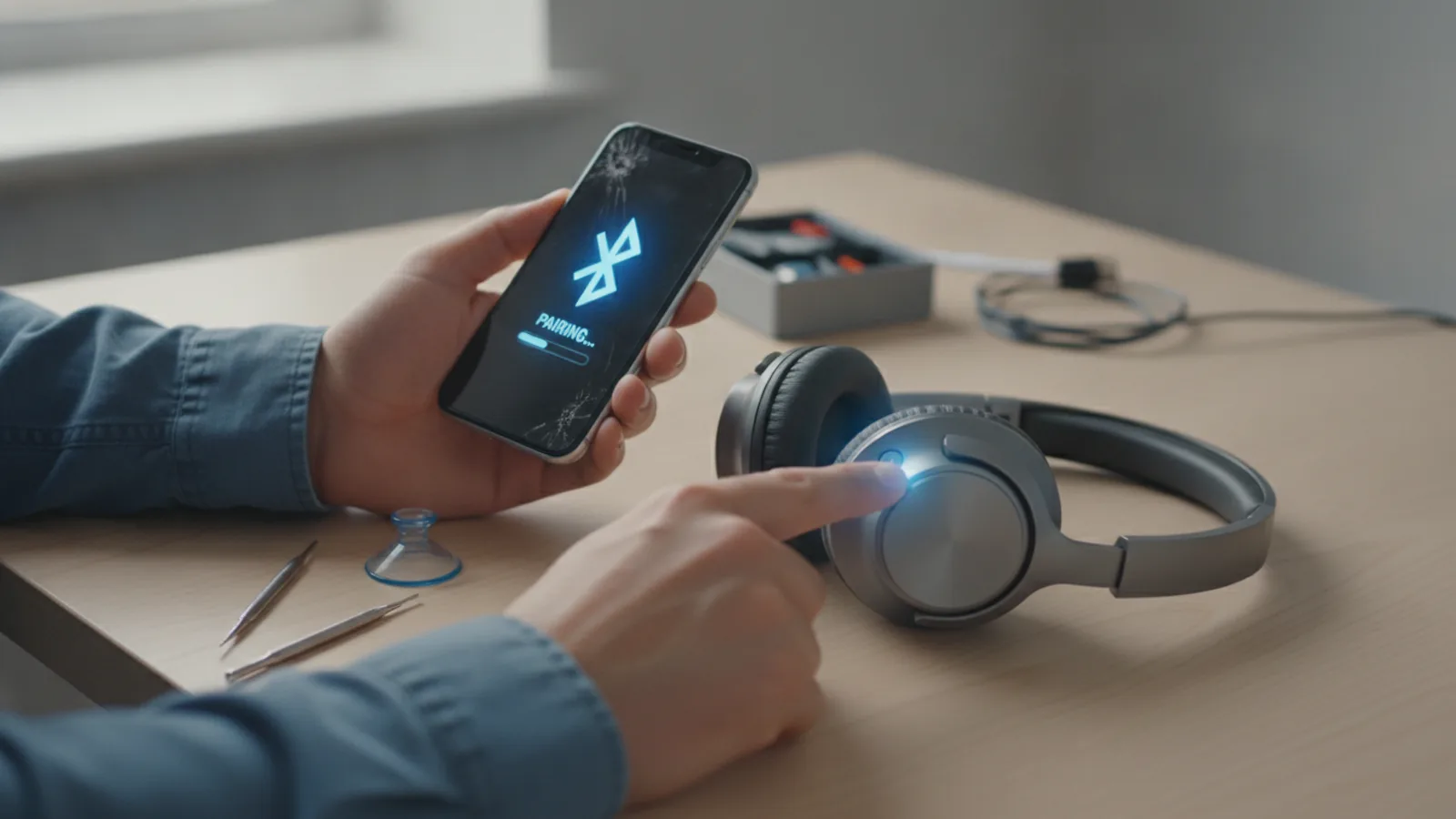
This is the most crucial step and where most people get stuck. Simply turning your headphones on is not enough; you must put them into a discoverable "pairing mode" so your iPhone can find them. The method varies by brand.
Common methods include:
- Press and hold the power button for 5-10 seconds until an indicator light starts flashing, often in blue and red or white.
- Press a dedicated Bluetooth or pairing button, which may be marked with the Bluetooth symbol (⎷).
- For earbuds like AirPods or similar, opening the case lid while the buds are inside often initiates pairing. Some require you to press and hold a button on the case itself.
Your headphones will typically provide an audible cue like a voice saying "Pairing" or a series of beeps. Consult your headphone's manual if you are unsure. This step tells your headphones to broadcast a signal that your iPhone can detect.
Enable Bluetooth on Your iPhone
Next, you need to make sure your iPhone's Bluetooth radio is turned on and actively looking for devices. You can do this in two ways.
Method 1: Using the Settings App (Recommended)
- Unlock your iPhone and open the Settings app (the grey gear icon).
- Tap on Bluetooth.
- Ensure the toggle switch at the top of the screen is green, indicating that Bluetooth is on. If it's grey, tap it to enable it.
Method 2: Using Control Centre
- Swipe down from the top-right corner of the screen (on iPhones with Face ID) or up from the bottom (on iPhones with a Home button) to open Control Centre.
- Look for the Bluetooth symbol. If it's blue, it's on. If it's white or grey, tap it to turn it blue.
Locate and Select Your Headphones
With your headphones in pairing mode and your iPhone's Bluetooth screen open, your iPhone will automatically start scanning for nearby devices. After a few seconds, you should see the name of your headphones appear under the "OTHER DEVICES" heading.
The name might be the brand and model number (e.g., "Sony WH-1000XM5") or a more generic code. If you're not sure which device is yours, check the name listed in your headphone manual. Tap on the name of your headphones in the list to initiate the pairing process.
Confirm the Connection
Once you tap the name, your iPhone will take care of the rest. The process usually takes a few seconds. A successful connection is confirmed in several ways:
- Your headphones will move from the "OTHER DEVICES" list to the "MY DEVICES" list at the top of the screen.
- The status next to the headphone name will change to "Connected".
- You may hear a confirmation sound or voice prompt from your headphones, such as "Connected".
- A small headphone icon might appear in the status bar at the top of your iPhone's screen.
In very rare cases with older devices, you might be asked for a PIN. If this happens, try 0000 or 1234.
Test the Audio Output
The final step is to make sure audio is routing correctly. Open a music app, YouTube, or any app that produces sound and play something. The audio should come through your headphones instead of the iPhone's speakers. You can adjust the volume using the side buttons on your iPhone or the controls on your headphones themselves.
If you don't hear anything, check that the volume is turned up and that your iPhone has selected the headphones as the audio output. You can verify this in the Control Centre by long-pressing the music playback widget and tapping the AirPlay icon (a triangle with circles). Your headphones should have a tick next to them.
Customise Your Headphone Settings
Once connected, you can often adjust specific settings for your headphones directly from your iPhone. In the Bluetooth menu (Settings > Bluetooth), tap the blue "i" (info) icon next to your connected headphones.
Depending on your headphone model, you may find options to:
- Rename your headphones to something more memorable (e.g., "My Work Headphones").
- Control features like Noise Cancellation or Transparency Mode.
- Configure what happens when you press buttons or touch controls on the headphones.
- Enable or disable Automatic Ear Detection.
Exploring these settings can help you get the most out of your wireless audio experience.
Quick Reference
| Situation | Use this | Why |
|---|---|---|
| Pairing for the very first time | Activate pairing mode on headphones | This makes the headphones visible and discoverable to your iPhone. |
| Headphones won't show up in the list | Turn iPhone Bluetooth off and on again | It forces the iPhone to perform a new scan for all nearby devices. |
| Audio is choppy or stuttering | Reduce distance; remove obstacles | Bluetooth signals are short-range and can be weakened by walls or even your own body. |
| Want to use different headphones | Use Control Centre > AirPlay Icon | This lets you quickly switch the audio output without needing to unpair anything. |
| Connection keeps failing | "Forget This Device" and re-pair | Clears any corrupted connection data and allows you to start the process from scratch. |
Common Problems When You bluetooth with headphones
Even though the process is straightforward, issues can arise. Here are solutions to the most common problems you might encounter when you bluetooth with headphones.
Problem: My headphones don't appear in the Bluetooth list.
This is the most frequent issue. If your iPhone can't see your headphones, work through these checks:
- Confirm Pairing Mode: Are you absolutely sure the headphones are in pairing mode, not just turned on? Look for a flashing light and re-read the device manual. Pairing mode usually times out after a few minutes, so you may need to reactivate it.
- Check Proximity: Bring the headphones right next to your iPhone. The initial pairing requires a very close and strong signal.
- Toggle Bluetooth: Go to Settings > Bluetooth and turn the toggle off. Wait ten seconds, then turn it back on. This simple reset can often solve detection problems.
- Check Other Connections: Ensure the headphones haven't automatically connected to your iPad, Mac, or another nearby device you've previously paired them with. Turn off Bluetooth on those other devices temporarily.
Problem: The connection fails or drops immediately.
If you see your headphones, tap to connect, but it fails or disconnects right away, try these steps:
- Restart Everything: The classic IT solution works wonders. First, turn your headphones off completely, then turn them back on and re-enter pairing mode. Second, restart your iPhone by holding the side button and a volume button until the power-off slider appears.
- Forget and Re-pair: If you've connected these headphones before, a corrupted profile might be the cause. Go to Settings > Bluetooth, tap the "i" next to the problematic device, and tap "Forget This Device". This will remove it from your iPhone's memory, allowing you to perform a completely fresh pairing.
Problem: Audio is stuttering, skipping, or distorted.
Poor audio quality is usually caused by a weak or interfered Bluetooth signal.
- Reduce Distance: The effective range for Bluetooth is about 10 metres (33 feet) in open space. Walls, furniture, and even your own body can block the signal. Keep your iPhone and headphones as close as possible.
- Minimise Interference: Bluetooth operates on the same 2.4GHz frequency as many other household devices. Wi-Fi routers, microwave ovens, cordless phones, and even other Bluetooth devices can cause interference. Try moving away from these sources.
- Update Software: Ensure your iPhone has the latest version of iOS installed (Settings > General > Software Update). Apple frequently includes bug fixes and improvements for Bluetooth connectivity in its updates.
Advanced Tips for bluetooth with headphones
Once you've mastered the basics, these tips can help you manage your devices more efficiently.
Managing Multiple Bluetooth Devices
Your iPhone can remember many paired devices. It will typically try to connect to the most recently used active device when you turn it on. If you have multiple pairs of headphones, speakers, and car kits, you can manually switch between them. Swipe to open Control Centre, press and hold the audio card (top right), then tap the AirPlay icon to see a list of all available audio outputs and select the one you want.
Renaming Your Headphones
If your headphones have a generic name like "TWS-100", renaming them can make them easier to identify. After connecting, go to Settings > Bluetooth, tap the "i" next to the device name, tap on "Name", and type a new one like "David's Gym Earbuds".
Forgetting a Device You No Longer Use
To keep your device list tidy and prevent accidental connections to old gear, it's good practice to remove devices you no longer own. Go to the Bluetooth settings, tap the "i" next to the device, and select "Forget This Device". This will permanently remove its pairing profile from your iPhone.
Resetting Network Settings (Last Resort)
If you are facing persistent, unresolvable Bluetooth issues with multiple devices, you can perform a network settings reset. Be warned: this will erase all saved Wi-Fi networks and passwords, cellular settings, and all Bluetooth pairings. You will have to set everything up again. To do this, go to Settings > General > Transfer or Reset iPhone > Reset > Reset Network Settings. Only use this as a final troubleshooting step.
Bluetooth With Headphones FAQ
How do I remove or "forget" a Bluetooth device from my iPhone?
To remove a device, go to Settings > Bluetooth. Find the device in the "MY DEVICES" list. Tap the blue "i" icon to the right of its name. On the next screen, tap "Forget This Device" and confirm your choice. This completely removes the pairing information from your iPhone.
Can I connect my headphones to my iPhone and my laptop at the same time?
This depends on your headphones, not your iPhone. The feature is called "Bluetooth Multipoint". If your headphones support it, they can maintain a connection to two source devices (like a phone and a laptop) simultaneously. This allows you to listen to music from your laptop and have the audio automatically switch to your iPhone when a call comes in. Check your headphone's specifications to see if they offer this feature.
Does leaving Bluetooth on all the time drain my iPhone's battery?
Modern iPhones use a technology called Bluetooth Low Energy (BLE). When Bluetooth is on but not actively connected to a device and streaming audio, the power consumption is extremely minimal. The impact on your daily battery life is negligible. The convenience of having it ready for your headphones, Apple Watch, or other accessories far outweighs the tiny amount of power it uses while idle.
What is the difference between "pairing" and "connecting"?
Pairing is the initial setup process, like an introduction where two devices exchange security information and agree to trust each other. You only need to do this once. Connecting is the action of establishing an active link between two already-paired devices. After the first time, your headphones and iPhone will automatically connect whenever they are both on and in range.
Why do my headphones keep disconnecting randomly?
Random disconnections are usually caused by three things: distance, interference, or low battery. First, make sure your iPhone is close to you. Second, be aware of potential sources of wireless interference like Wi-Fi routers. Finally, a low battery on either the headphones or the iPhone can cause the connection to become unstable. Charge both devices fully and see if the problem persists.
Final Checklist for bluetooth with headphones
- Both your iPhone and headphones are charged to at least 20%.
- Your headphones are in their specific pairing mode, not just turned on.
- Bluetooth is enabled in your iPhone's Settings menu.
- Your headphones are not currently connected to any other device like a tablet or computer.
- You have selected the correct device from the "OTHER DEVICES" list on your iPhone.
- You have confirmed the connection by playing a sound and hearing it through the headphones.
- If problems occurred, you have tried restarting both your iPhone and your headphones before attempting to pair again.