Apple Headphones Max
A practical step-by-step guide to apple headphones max, including preparation, instructions, common issues, tips, and next steps.

Apple Headphones Max
This guide provides comprehensive instructions for setting up, using, maintaining, and troubleshooting your Apple AirPods Max headphones. Whether you're new to AirPods Max or need to refresh your memory on specific features, this guide will walk you through everything from initial pairing to advanced tips and common fixes. We'll cover how to get the best sound, manage battery life, and keep your headphones in top condition for everyday use.
Fast Answer
- Initial Pairing: Hold AirPods Max near your unlocked Apple device and follow screen prompts.
- Switch ANC/Transparency: Press the Noise Control button once.
- Hard Reset: Hold Noise Control and Digital Crown for 12 seconds until status light flashes amber.
Before You Start
- Apple AirPods Max: Ensure your headphones are fully charged or have sufficient battery.
- Compatible Apple Device: An iPhone, iPad, or Mac running the latest iOS, iPadOS, or macOS.
- Apple ID: Logged into your Apple ID on the device you wish to pair with.
- Smart Case: Have the Smart Case ready for optimal battery preservation when not in use.
- Soft, Lint-Free Cloth: Useful for initial cleaning and ongoing maintenance.
Step-by-Step Instructions
1. Unboxing and Initial Charge
When you first get your Apple AirPods Max, the first step is to carefully unbox them and ensure they have enough power. The packaging is designed to protect them, so take your time. Remove the headphones from their box along with the Smart Case and the included Lightning to USB-C charging cable.
While AirPods Max usually have some charge out of the box, it's always best to fully charge them before first use. Connect the Lightning end of the cable to the port on the bottom of the right earcup. Plug the USB-C end into a compatible USB-C power adapter (sold separately) or a USB-C port on a computer. The status light on the bottom of the right earcup will show amber while charging and green when fully charged. A full charge can take a couple of hours.
2. Pairing with an Apple Device
Pairing your AirPods Max with an Apple device is incredibly simple thanks to the H1 chip. Once paired with one device signed into your Apple ID, they will automatically connect to other compatible Apple devices (like your iPad or Mac) signed into the same Apple ID.
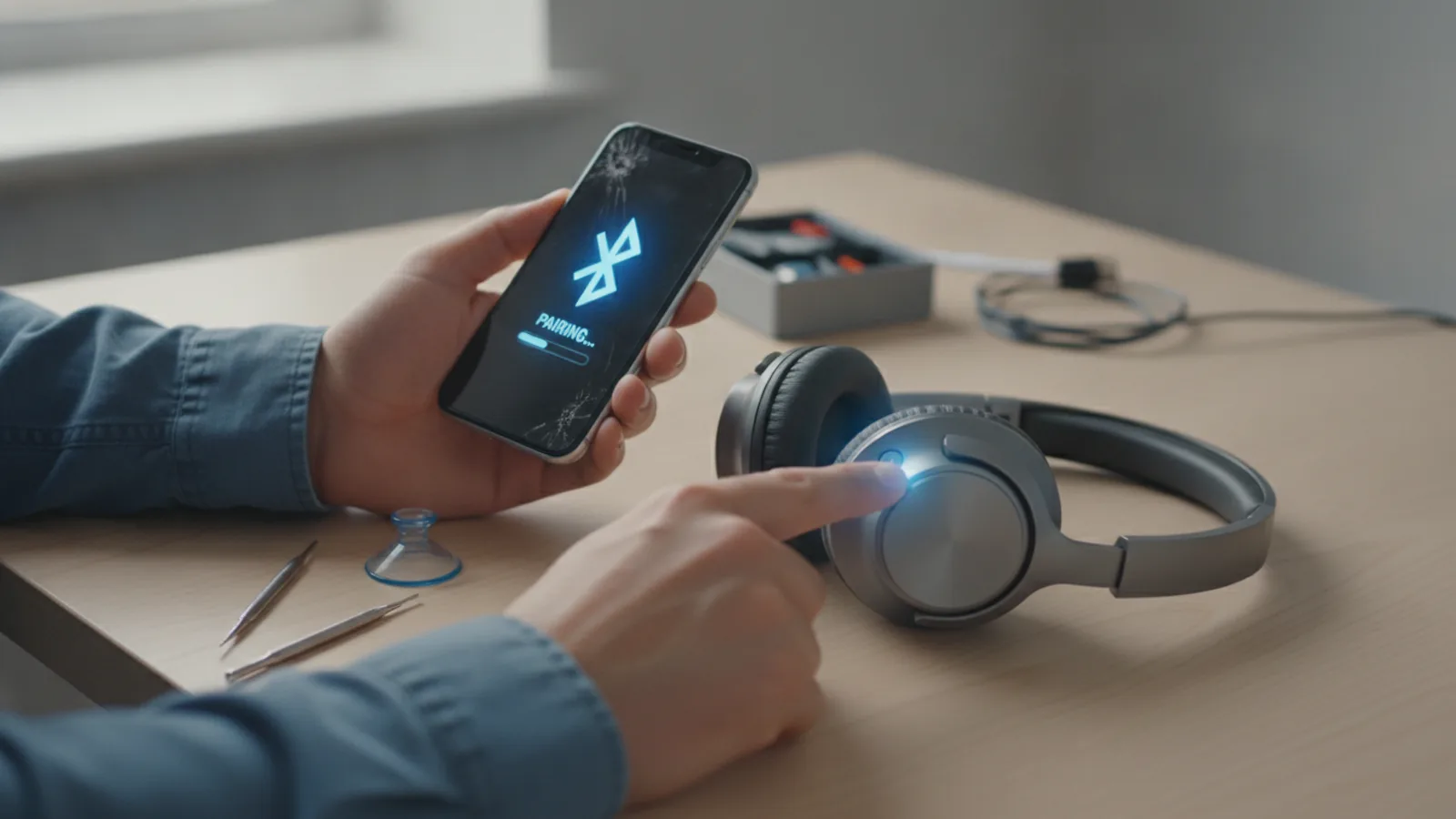
First, ensure your Apple device (e.g., iPhone) is unlocked and on its Home screen. Hold your AirPods Max close to your iPhone. A setup animation will appear on your iPhone's screen. Tap "Connect" and then "Done" to complete the pairing process. If you don't see the animation, make sure Bluetooth is enabled on your device and try again.
3. Understanding Controls (Digital Crown & Noise Control Button)
The AirPods Max feature two main physical controls on the right earcup: the Digital Crown and the Noise Control button. Learning these controls is key to managing your audio experience.
- Digital Crown: This is the larger, circular dial.
- Rotate: Turn to increase or decrease volume.
- Press once: Play/pause audio, or answer/end a phone call.
- Press twice: Skip forward to the next track.
- Press three times: Skip back to the previous track.
- Press and hold: Activate Siri.
- Noise Control Button: This is the smaller, oval-shaped button.
- Press once: Switch between Active Noise Cancellation (ANC) and Transparency mode.
- Press and hold (for 5 seconds): Puts the AirPods Max into manual pairing mode (see Step 2).
- Press and hold (with Digital Crown for 12 seconds): Initiates a full factory reset (see Step 9).
4. Using Active Noise Cancellation (ANC) and Transparency Mode
One of the standout features of AirPods Max is their ability to control what you hear from your surroundings. You can switch between Active Noise Cancellation (ANC) and Transparency mode using the Noise Control button.
Active Noise Cancellation (ANC): When ANC is active, the AirPods Max use microphones to detect external sounds and then create an anti-noise signal to cancel them out. This is ideal for noisy environments like public transport, offices, or busy streets, allowing you to focus on your audio without distraction.
Transparency Mode: This mode allows outside sound in, so you can hear what's happening around you while still listening to your audio. It's useful for situations where you need to be aware of your surroundings, such as crossing a road, listening for announcements, or having a quick conversation without taking off your headphones.
To switch between these modes, simply press the **Noise Control button** once. Your AirPods Max will confirm the mode change with a subtle chime and a voice prompt (if enabled). You can also control these modes from your iPhone's Control Centre (by long-pressing the volume slider) or from the AirPods Max settings.
5. Wearing Your AirPods Max Comfortably and Correctly
For the best audio experience, including effective noise cancellation and optimal sound quality, it's important to wear your AirPods Max correctly and comfortably. The design allows for a good amount of adjustment.
First, ensure the earcups are oriented correctly. The "L" (left) and "R" (right) indicators are printed inside each earcup. Place the earcups over your ears so that they fully enclose them. The memory foam ear cushions should form a good seal around your ears without pressing uncomfortably.
Next, adjust the stainless steel headband. Gently slide the telescoping arms up or down until the mesh canopy rests lightly on the top of your head and the earcups feel secure and comfortable. There should be no significant gaps around your ears. A good seal is crucial for the best Active Noise Cancellation performance.
6. Charging and Battery Life Management
Maintaining the battery of your AirPods Max is essential for long-term use. They offer up to 20 hours of listening time, talk time, or movie playback with Active Noise Cancellation and Spatial Audio enabled. There are a few ways to charge and manage their power.
To charge, simply plug the included Lightning to USB-C cable into the port on the right earcup and connect it to a power source. The status light will indicate charging (amber) or full charge (green). A 5-minute charge can provide around 1.5 hours of listening time if your battery is critically low, which is handy in a pinch.
When you're not using your AirPods Max, place them in the Smart Case. This immediately puts them into an ultra-low power state, significantly preserving battery charge. If left out of the Smart Case but stationary for 5 minutes, they enter a low power mode. After 72 hours out of the Smart Case, they enter an even lower power mode that turns off Bluetooth and Find My to conserve power.
7. Cleaning Your AirPods Max for Longevity
Regular cleaning of your AirPods Max will keep them looking good and performing their best. They are not waterproof or water-resistant, so avoid getting moisture into any openings.
Ear Cushions: Gently remove the magnetic ear cushions from the earcups. Use a soft, dry, lint-free cloth to wipe the earcups. For the ear cushions themselves, mix about 1 teaspoon (5ml) of liquid laundry detergent with 1 cup (250ml) of water. Dampen a cloth slightly with this solution and gently wipe the cushions. Do not saturate them. Allow them to air dry completely before reattaching.
Mesh Canopy and Headband Frame: For the mesh fabric canopy and the headband frame, lightly dampen a soft, lint-free cloth with water. Gently wipe the surfaces. Do not use cleaning products that contain bleach or abrasives. Ensure no moisture gets into the speaker grilles or headband mechanisms. Allow to air dry thoroughly.
Digital Crown and Noise Control Button: Use a dry cotton swab or a soft, dry cloth to gently wipe around these controls to remove any dust or debris.
8. Updating Firmware
Unlike some other devices, you don't manually update the firmware on your AirPods Max. Apple handles this automatically in the background. As long as your AirPods Max are connected to power, near a paired Apple device with an active internet connection, the firmware updates will download and install without any action required from you.
To check your current firmware version, go to Settings > Bluetooth on your iPhone or iPad, tap the "i" icon next to your AirPods Max, and scroll down to find the "Firmware Version". There's no button to force an update; if one is available, it will install eventually.
9. Resetting Your AirPods Max
There are two types of resets you might need to perform on your AirPods Max: a soft reset (reboot) and a factory reset.
Soft Reset (Reboot): If your AirPods Max are acting strangely (e.g., connectivity issues, controls not responding), a soft reset can often fix it without losing your settings. To do this, press and hold the **Noise Control button** and the **Digital Crown** simultaneously for about **5-8 seconds** until the status light flashes amber. Release the buttons, and they will reboot.
Factory Reset: A factory reset returns your AirPods Max to their original factory settings, unpairing them from all your devices. This is useful if you're selling them, giving them away, or encountering persistent issues that a soft reset can't fix.
To perform a factory reset, press and hold both the **Noise Control button** and the **Digital Crown** for approximately **12 seconds**. The status light will first flash amber, then repeatedly flash white. Release the buttons when you see the white flashing light. Your AirPods Max are now reset and ready to be paired as new.
10. Using Audio Sharing
Audio Sharing allows you to share the audio from your iPhone or iPad with another pair of AirPods or Beats headphones. This is great for watching a movie or listening to music with a friend.
To use Audio Sharing, first, ensure your AirPods Max are connected to your iPhone or iPad and playing audio. Have the second pair of compatible AirPods or Beats headphones connected to the same iPhone or iPad, or held very close to it with their case open (if they are AirPods). On your iPhone or iPad, swipe down from the top-right corner to open Control Centre (or swipe up from the bottom for older models).
Tap the **AirPlay icon** (looks like a triangle with concentric circles) in the Now Playing card. Under the "Share Audio" section, tap **"Share Audio"**. Your device will then scan for nearby compatible headphones. Select the other pair of headphones from the list, and the audio will begin playing through both sets. You can control the volume for each pair independently from the Control Centre.
Quick Reference
| Situation | Use this | Why |
|---|---|---|
| Want to hear your surroundings | Press the **Noise Control button** once. | Switches to Transparency Mode. |
| Need to skip to the next song | Press the **Digital Crown** twice. | Quickly advances playback. |
| AirPods Max acting erratically | Hold **Noise Control + Digital Crown** for ~8 seconds until amber flash. | Performs a soft reboot without losing settings. |
| Selling or giving away AirPods Max | Hold **Noise Control + Digital Crown** for ~12 seconds until white flashing light. | Performs a factory reset, unpairing from all devices. |
| Need to activate Siri quickly | Press and hold the **Digital Crown**. | Activates Siri for voice commands. |
Common Problems When You Apple Headphones Max
- AirPods Max Not Pairing:
Fix: Ensure Bluetooth is on, your device is running the latest software, and your AirPods Max are charged. Try putting them into manual pairing mode (hold **Noise Control button** for 5 seconds until white light flashes). If that fails, perform a soft reset. Check that your Apple ID is signed in correctly.
- Active Noise Cancellation Not Working Properly:
Fix: First, ensure you've pressed the **Noise Control button** to activate ANC. Check for any debris around the microphones on the earcups. Ensure the ear cushions have a good seal around your ears. If issues persist, try a soft reset or factory reset. Environmental factors (like strong wind) can sometimes impact performance.
- Sound Only Coming from One Earcup:
Fix: Check your device's audio balance settings (Settings > Accessibility > Audio/Visual > Balance). Ensure both ear cushions are properly attached. Perform a soft reset of your AirPods Max. If the problem continues, there might be a hardware issue, and you should contact Apple Support.
- Battery Draining Quickly:
Fix: Always place your AirPods Max in their **Smart Case** when not in use to enter ultra-low power mode. Ensure they are fully charged before use. Check for excessive use of ANC or Spatial Audio, which can consume more power. If battery life remains unusually short, your battery may be degrading, and a service might be needed.
- Digital Crown or Noise Control Button Unresponsive:
Fix: Check for any debris or stickiness around the buttons. Gently clean with a dry cotton swab. Try a soft reset of your AirPods Max. If the issue persists after a reset, it could indicate a hardware fault.
- Connectivity Drops or Stuttering Audio:
Fix: Move closer to your paired device and away from sources of interference (e.g., Wi-Fi routers, microwaves, other Bluetooth devices). Ensure your device's software is up to date. Disconnect and re-pair your AirPods Max. A soft reset can also help stabilise the connection.
Advanced Tips for Apple Headphones Max
- Optimised Battery Charging:
Similar to iPhones, AirPods Max have an "Optimised Battery Charging" feature. This learns your daily charging routine and may pause charging past 80% until closer to when you need to use them. This reduces battery ageing. You can find and manage this setting in **Settings > Bluetooth > AirPods Max > Battery Health** on your iPhone or iPad.
- Customising Controls:
Dive into your AirPods Max settings on your Apple device. Go to **Settings > Bluetooth**, then tap the "i" icon next to your AirPods Max. Here you can customise the Digital Crown's rotation direction for volume, change what modes the Noise Control button cycles through, and adjust automatic head detection. Personalising these settings can greatly enhance your user experience.
- Spatial Audio with Dynamic Head Tracking:
AirPods Max support Spatial Audio, which creates an immersive, theatre-like experience for supported content (movies, TV shows, and some music). It uses dynamic head tracking to keep sounds fixed to your device, even as you move your head. To experience this, ensure you are playing content that supports Spatial Audio (often indicated by an icon in Control Centre or playback apps). You can toggle Spatial Audio on/off from the Control Centre by long-pressing the volume slider and tapping the Spatial Audio icon.
- Find My Integration:
If you misplace your AirPods Max, you can use the Find My app on your iPhone, iPad, or Mac to locate them. They will appear on a map and you can play a sound (though it might not be very loud for AirPods Max). If they are out of range or powered off, Find My will show their last known location. This is a crucial feature for peace of mind.
- Using with Non-Apple Devices:
While designed for the Apple ecosystem, AirPods Max can function as standard Bluetooth headphones with non-Apple devices like Android phones or Windows PCs. To pair, ensure your AirPods Max are out of the Smart Case and hold the **Noise Control button** for 5 seconds until the status light flashes white. Then, go to the Bluetooth settings on your non-Apple device and select "AirPods Max" to connect. Note that features like Spatial Audio, automatic switching, and seamless pairing will not be available.
Apple Headphones Max FAQ
- Q: Are AirPods Max waterproof?
A: No, AirPods Max are not waterproof or water-resistant. You should avoid exposing them to rain, sweat, or any liquids. Liquid damage is not covered under warranty.
- Q: How do I check the battery level of my AirPods Max?
A: You can check the battery level on your iPhone or iPad by opening the lid of the Smart Case near your device, or by looking at the Batteries widget in your Today View. You can also see it in **Settings > Bluetooth** next to your AirPods Max listing, or by rotating the Digital Crown while wearing them (a chime and battery percentage will be heard).
- Q: Can I replace the ear cushions myself?
A: Yes, the ear cushions on AirPods Max are magnetically attached and can be easily removed and replaced. Apple sells replacement ear cushions separately in various colours.
- Q: What is the Smart Case for?
A: The Smart Case is designed to put your AirPods Max into an ultra-low power state, significantly extending battery life when not in use. It also provides basic protection for the earcups and headband.
- Q: Do AirPods Max work with an airplane's entertainment system?
A: Yes, but you'll need a special adapter. Since AirPods Max only connect wirelessly via Bluetooth, you'll need a Bluetooth transmitter (often a 3.5mm jack to Bluetooth adapter) to connect them to the standard headphone jack found on most airplane entertainment systems.
- Q: Why does the sound sometimes cut out when I'm walking or in a busy area?
A: This can be due to Bluetooth interference. Dense areas with many Wi-Fi networks and Bluetooth devices can cause signal drops. Try moving closer to your source device or restarting both your device and AirPods Max.
Final Checklist for Apple Headphones Max
- Have you fully charged your AirPods Max before first use?
- Are your AirPods Max correctly paired with your primary Apple device?
- Do you understand how to use the Digital Crown for volume and playback control?
- Can you confidently switch between Active Noise Cancellation and Transparency Mode using the Noise Control button?
- Are you regularly placing your AirPods Max in the Smart Case when not in use to preserve battery life?
- Have you checked for and addressed any common problems like pairing issues or sound cutting out?
- Are you cleaning your AirPods Max regularly with a soft, dry, lint-free cloth and appropriate solutions for the ear cushions?
- Do you know how to perform a soft reset and a factory reset if necessary?
- Are you making the most of advanced features like Spatial Audio and customisable controls?
- Have you familiarised yourself with the Find My feature in case your AirPods Max get misplaced?
By following this guide and regularly performing these checks, you'll ensure your Apple AirPods Max provide you with a premium audio experience for years to come.
What should I check before acting on advice about apple headphones max?
Use this guide as a starting point, compare current specifications and costs, and check the details that apply to your own situation before making a purchase or booking.
Where can I find related buying-guides guidance?
Browse the related guides in this section for practical comparisons, planning notes, and next steps that support the same decision.